
Flutter Performance: The 4 Real Issues That Cause Lag in Production Apps
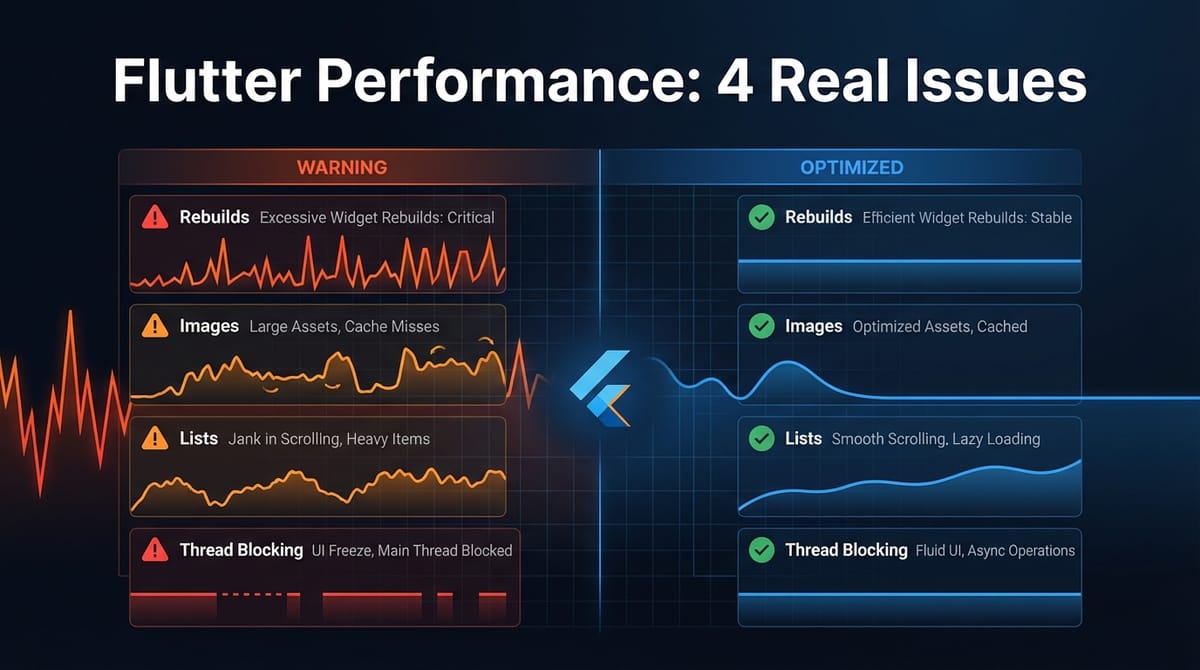
Most Flutter performance problems come from the same four places. We've shipped dozens of Flutter apps at Etere Studio, and when something feels sluggish, it's almost always one of these: unnecessary widget rebuilds, unoptimized images, inefficient lists, or blocking the UI thread.
The good news? All four are fixable in an afternoon. Here's exactly what to look for and how to fix it.
Unnecessary Widget Rebuilds
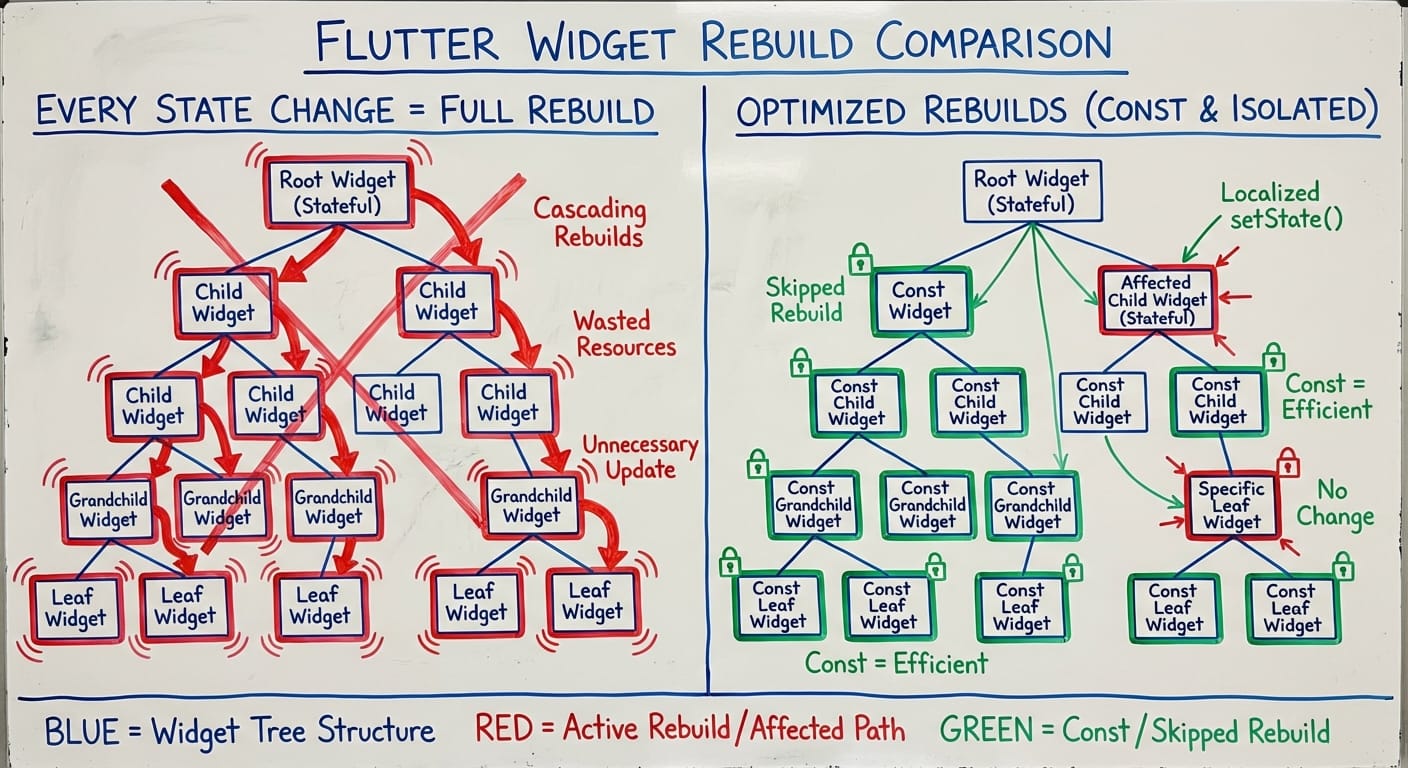
This is the most common performance killer we see. A widget rebuilds when it doesn't need to, and that rebuild cascades down to hundreds of children. Your frame rate tanks.
The Problem
Flutter rebuilds widgets when their parent rebuilds or when state changes. That's fine—until you're rebuilding your entire screen because one counter incremented.
We profiled an app last year that was hitting 45 FPS on scroll. The culprit? A Provider at the root that held user preferences, cart items, and auth state in one object. Every cart update rebuilt the entire widget tree.
The Fixes
Use const constructors everywhere possible. A const widget is created once at compile time. Flutter skips it during rebuilds entirely.
// Before: rebuilds every time parent rebuilds
Container(
  padding: EdgeInsets.all(16),
  child: Text('Static text'),
)

// After: never rebuilds
const Padding(
  padding: EdgeInsets.all(16),
  child: Text('Static text'),
)
Scope your state management tightly. Don't put everything in one provider. Split it.
// Before: one provider, everything rebuilds
class AppState {
  User user;
  Cart cart;
  Settings settings;
}

// After: separate providers, surgical rebuilds
MultiProvider(
  providers: [
    ChangeNotifierProvider(create: (_) => UserState()),
    ChangeNotifierProvider(create: (_) => CartState()),
    ChangeNotifierProvider(create: (_) => SettingsState()),
  ],
)
Use context.select() instead of context.watch(). Only rebuild when the specific field you care about changes.
// Before: rebuilds on any cart change
final cart = context.watch<CartState>();
Text('Items: ${cart.itemCount}')

// After: rebuilds only when itemCount changes
final count = context.select<CartState, int>((c) => c.itemCount);
Text('Items: $count')
That laggy app? After splitting the provider and adding const widgets, it hit 60 FPS consistently.
Unoptimized Images
Images are heavy. Load a 4000x3000 photo for a 200-pixel thumbnail, and you've just allocated 48MB of memory for one image. Do that in a list, and you're crashing on older devices.
The Problem
Network images without caching re-download every time. Oversized images waste memory and decode time. No placeholders mean layout jumps and perceived slowness.
The Fixes
Use cached_network_image. It caches to disk and memory. One line change, massive improvement.
// Before: downloads every time, no placeholder
Image.network(url)

// After: cached, with placeholder and error handling
CachedNetworkImage(
  imageUrl: url,
  placeholder: (_, __) => const CircularProgressIndicator(),
  errorWidget: (_, __, ___) => const Icon(Icons.error),
)
Request the right size from your backend. If you're showing a 100x100 thumbnail, don't download the 2000x2000 original. Most CDNs support size parameters.
// Cloudinary example
final thumbnailUrl = '$baseUrl/w_200,h_200,c_fill/$imageId';
Specify dimensions upfront. This prevents layout shifts and helps Flutter allocate memory correctly.
CachedNetworkImage(
  imageUrl: url,
  width: 200,
  height: 200,
  fit: BoxFit.cover,
)
We measured a product grid before and after these changes. Memory usage dropped from 340MB to 89MB. Scroll performance went from 52 FPS to 60 FPS.
Inefficient Lists
Putting 500 items in a Column inside a SingleChildScrollView is a guaranteed way to freeze your app on launch. We've seen it more times than we'd like.
The Problem
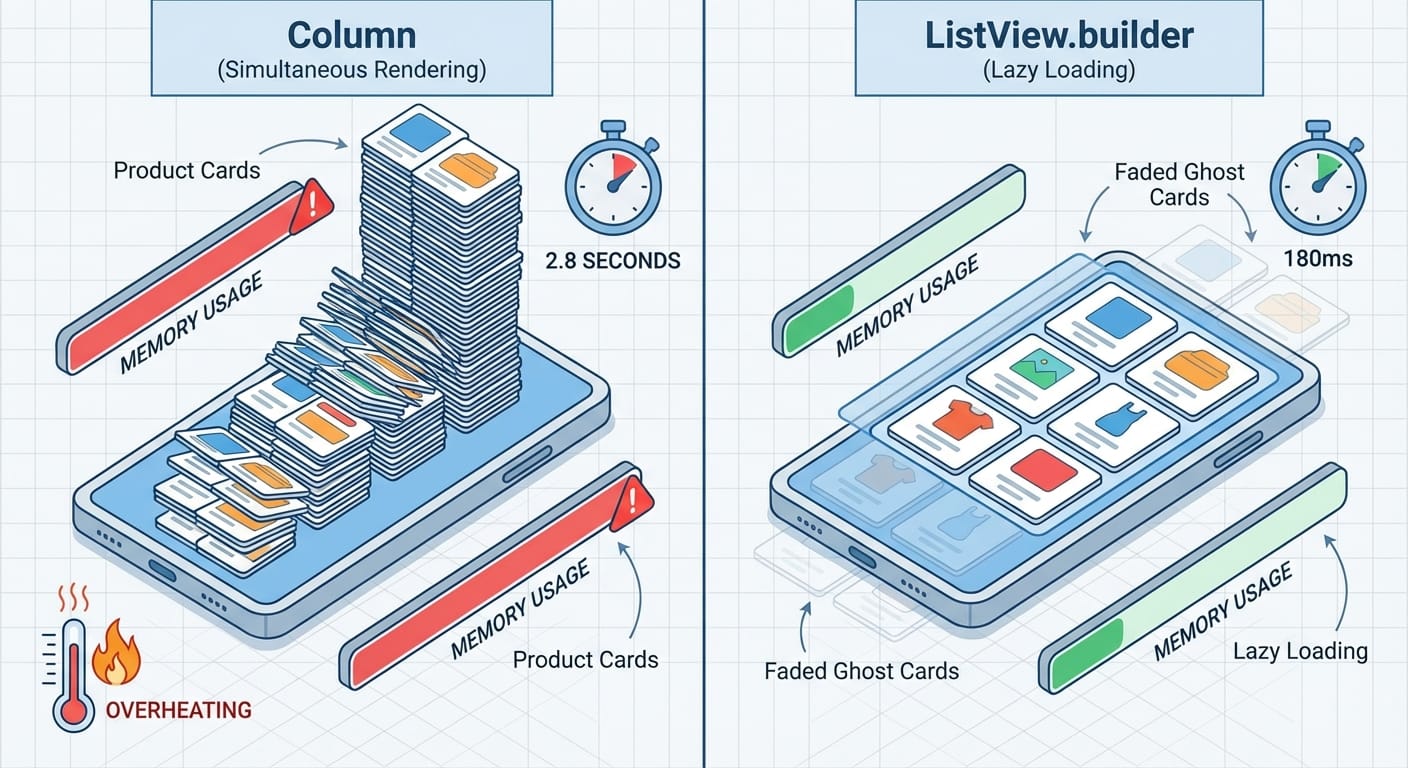
Column and Row build all their children immediately. For a list of 500 products, that's 500 widgets created before the user sees anything. First frame takes 3 seconds.
The Fixes
Use ListView.builder for any list over ~20 items. It only builds visible items plus a small buffer.
// Before: builds all 500 items immediately
SingleChildScrollView(
  child: Column(
    children: products.map((p) => ProductCard(p)).toList(),
  ),
)

// After: builds ~10 items at a time
ListView.builder(
  itemCount: products.length,
  itemBuilder: (context, index) => ProductCard(products[index]),
)
Add itemExtent if items have fixed height. Flutter can skip layout calculations entirely.
ListView.builder(
  itemCount: products.length,
  itemExtent: 120, // each item is exactly 120 pixels
  itemBuilder: (context, index) => ProductCard(products[index]),
)
Use keys correctly. When list items can change order (sorting, filtering), add ValueKey to help Flutter reuse widgets instead of rebuilding.
ListView.builder(
  itemCount: products.length,
  itemBuilder: (context, index) {
    final product = products[index];
    return ProductCard(
      key: ValueKey(product.id), // helps with reordering
      product: product,
    );
  },
)
A client's product catalog went from 2.8 second initial render to 180ms after switching to ListView.builder with itemExtent. Night and day.
Blocking the UI Thread
Flutter has one UI thread. Block it for more than 16ms, and you drop frames. Block it for 500ms, and users think the app crashed.
The Problem
JSON parsing, image processing, database queries, complex calculations—any of these on the main thread will cause jank. The app freezes, then catches up. Users hate it.
The Fixes
Use compute() for heavy synchronous work. It runs the function in a separate isolate.
// Before: blocks UI during parse
final data = jsonDecode(hugeJsonString);
final products = data.map((j) => Product.fromJson(j)).toList();

// After: runs in background isolate
final products = await compute(_parseProducts, hugeJsonString);

List<Product> _parseProducts(String json) {
  final data = jsonDecode(json);
  return data.map((j) => Product.fromJson(j)).toList();
}
Chunk heavy UI work. If you must build many widgets, break it into batches with Future.delayed.
// Process in chunks of 50, yielding between batches
for (var i = 0; i < items.length; i += 50) {
  final chunk = items.skip(i).take(50);
  processChunk(chunk);
  await Future.delayed(Duration.zero); // yield to UI thread
}
Move database operations off the main thread. Libraries like drift handle this automatically. If you're using raw sqflite, wrap queries in isolates.
We had an app that froze for 800ms when opening a screen with complex data. The fix was moving JSON parsing to compute(). Freeze time dropped to 0ms—the loading spinner actually spun now.
How to Find These Issues
Don't guess. Use Flutter's built-in tools.
Flutter DevTools Performance tab: Shows frame rendering times. Look for red bars (frames over 16ms).
Widget rebuild tracking: In DevTools, enable "Track widget rebuilds." You'll see exactly what's rebuilding and why.
debugPrintRebuildDirtyWidgets: Add this to main() during development. It prints every widget rebuild to console.
void main() {
  debugPrintRebuildDirtyWidgets = true;
  runApp(MyApp());
}
Timeline view: For jank issues, record a timeline and look for long frames. It'll show you exactly what's taking time.
Flutter is fast by default. When it's not, the problem is almost always one of these four things. Fix them systematically, measure before and after, and you'll hit 60 FPS.
Running into performance issues you can't crack? We're happy to help.